MultiClic is a free auto clicker for PC running Windows 10 and 11: an automatic mouse clicker that clicks for you on a single spot at the speed you choose, or runs through a sequence of several points on the screen. It is portable (a single 175 KB .exe), needs no installation and is controlled with hotkeys that work even when another window is in focus.
Version 1.0.2 · Windows 10 & 11
| Version | 1.0.2 |
| Size | 175 KB |
| System | Windows 10 & 11 |
| Installation | Not required (portable) |
| Language | English |
| License | Free |
| Updated | Oct 11, 2026 |
| SHA-256 | 79dae9175b248bf0… |
No sign-up · No installer · No ads inside the app
How can I check the file is genuine?
Open PowerShell in the folder where you downloaded it and run Get-FileHash .\MultiClic-EN.exe. The value must be exactly 79dae9175b248bf089afe1e64f92cb996cd0d3b1b247814df15f5fa45d93605e. If it does not match, do not open it and download it again from this page.
What is an auto clicker and what can MultiClic do?
An auto clicker (also called an automatic clicker, autoclicker or mouse clicker) is a program that simulates mouse clicks automatically. MultiClic combines two tools in one: a classic auto clicker for PC that repeats clicks on one spot, and a multi-point clicker that automates click sequences across different positions.
Use it for repetitive tasks such as filling in forms, testing interfaces, idle games or anything that makes you click over and over again. It can be as slow or as fast as you need: from hours between clicks down to milliseconds for a fast auto clicker.
Auto clicker features
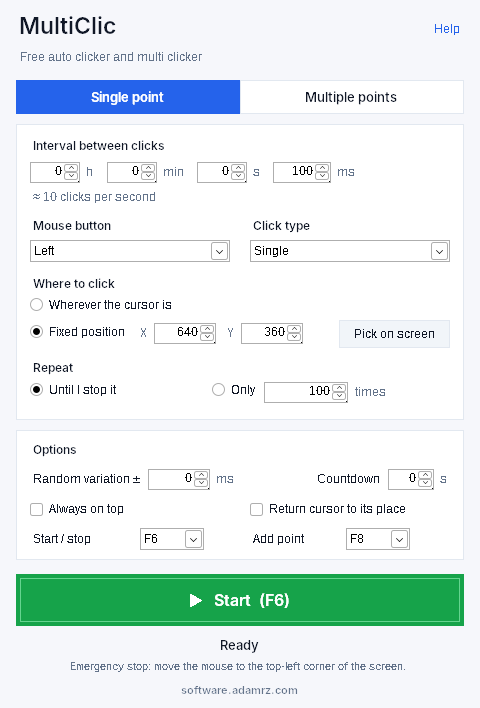
Single-point mode (auto clicker)
- Click interval in hours, minutes, seconds and milliseconds, with the resulting clicks per second shown right below.
- Left, right or middle mouse button.
- Single or double click.
- Click wherever the cursor is or at a fixed position (X/Y), picked with F8 or directly on screen.
- Repeat until you stop it or an exact number of times.
Multi-point mode (multi clicker)
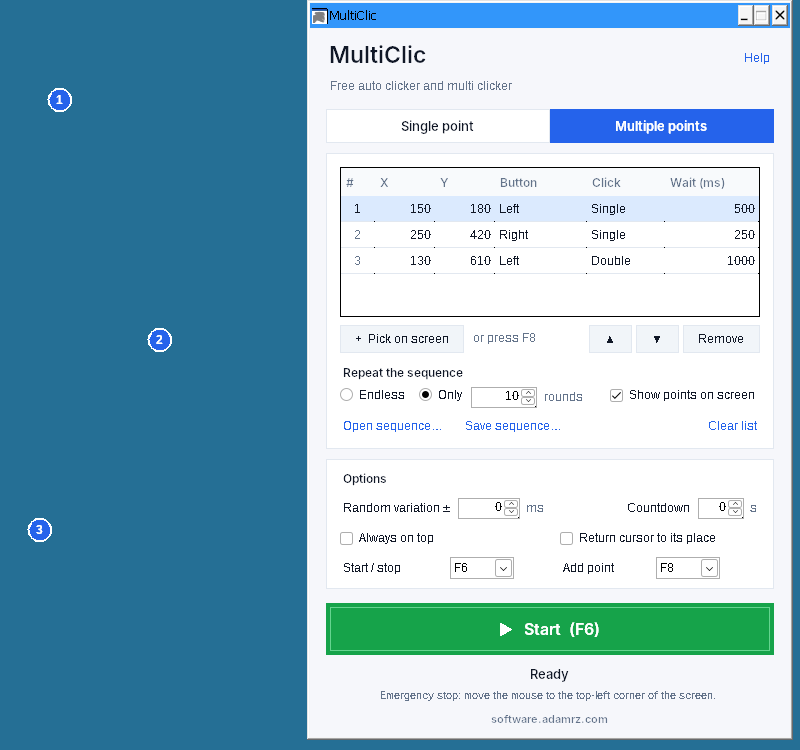
- A list of points clicked in order; add each one by hovering over it and pressing F8, or by clicking on the screen.
- Every point has its own mouse button, click type and delay before moving to the next one.
- Editable table: move points up, down or remove them.
- Repeat the sequence forever or a set number of rounds.
- Points are shown numbered on screen; the active one turns green, and clicks pass through the markers.
- Sequences can be saved and opened as
.mclicfiles.
Global hotkeys
F6 starts or stops clicking and F8 adds a point, even when another window is active. Both keys can be changed to anything from F1 to F12.
Options
- Random interval variation (± milliseconds) so clicks look less regular.
- Countdown before starting.
- Always-on-top window.
- Return the cursor to where it was after each fixed-position click.
Safety and comfort
- Emergency stop: move the mouse to the top-left corner of the screen and it stops.
- It never clicks on its own window, so the Stop button always responds.
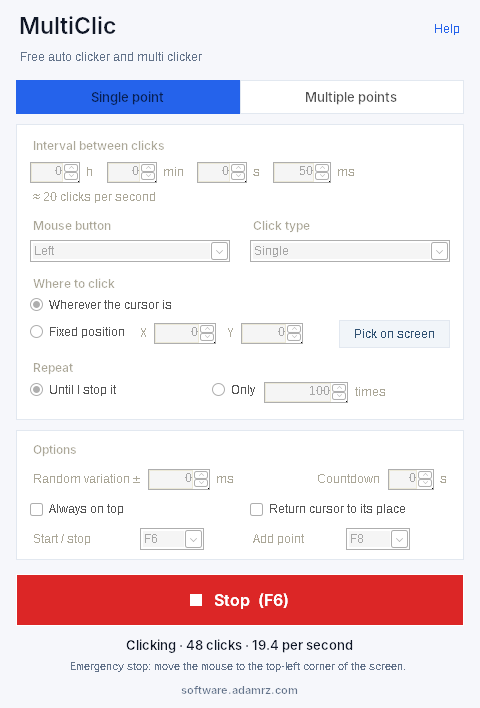
- Live click counter and real speed while running.
- Settings and points are saved automatically on exit.
- Only one copy can run at a time.
- Any error is shown and saved to
error.log.
How to use the auto clicker step by step
Auto clicker on a single spot
- Download MultiClic and open the .exe file (nothing to install).
- Choose the single-point mode.
- Set the click interval and check the clicks per second shown below it.
- Pick the mouse button (left, right or middle) and single or double click.
- Decide whether to click at the cursor or at a fixed position (press F8 to set it).
- Press F6 to start and F6 again to stop.
Multi clicker with several points
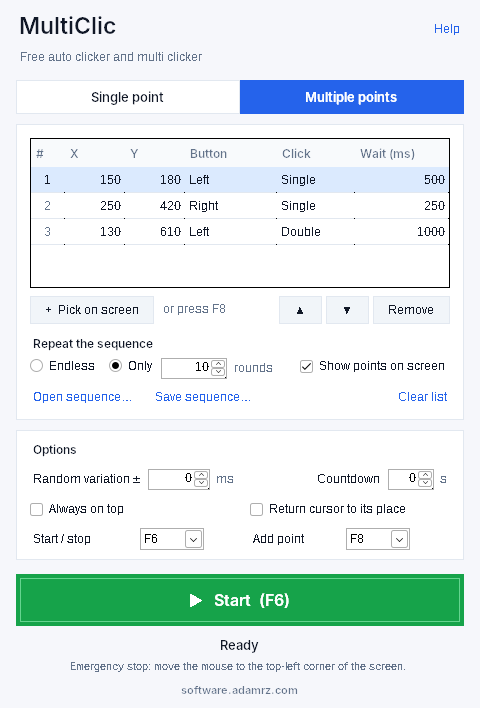
- Choose the multi-point mode.
- Hover over each place you want to click and press F8 to add it to the list.
- In the table, set the button, click type and delay for each point; move them up or down to change the order.
- Choose whether the sequence repeats forever or a number of rounds.
- Save the sequence as a .mclic file if you want to reuse it.
- Press F6 to start or stop.
System requirements
- Windows 10 or Windows 11.
- 175 KB of free disk space.
- No installation or special permissions needed.
Auto clicker FAQ
Is MultiClic a free auto clicker?
Yes. MultiClic is completely free: there is no paid version, no sign-up and no ads inside the program.
Is it an auto clicker for PC with no installation?
Yes. It is a single portable .exe file. Download it, open it and it works. To remove it, just delete the file.
Which versions of Windows does it support?
MultiClic is built for Windows 10 and Windows 11.
How do I stop the auto clicker?
Press F6 (or the key you assigned) at any time, even from another window. There is also an emergency stop: move the mouse to the top-left corner of the screen and it stops instantly.
Can it click on several different spots?
Yes. In multi-point mode you build a list of positions that are clicked in order. Each point has its own mouse button, click type (single or double) and delay before the next one.
Can I save my click sequences?
Yes. Sequences are saved and opened as .mclic files, and MultiClic also saves all settings and points automatically when you close it.
Is it a fast auto clicker? How many clicks per second?
It depends on the interval you set (hours, minutes, seconds and milliseconds). The clicks per second are shown below the interval, and while running you see the real speed and a click counter.
Can I use it in games like Roblox or Minecraft?
MultiClic works on any Windows window, but many online games forbid automated clicking in their rules. Check them first so you do not put your account at risk.
Is it safe? Windows SmartScreen shows a warning
Always download it from this official page. Windows often warns about small programs downloaded from the internet that still have few downloads; if you see the warning, click “More info” and then “Run anyway”.
Download the free auto clicker
MultiClic: a lightweight auto clicker and multi clicker for Windows, with no installation.